
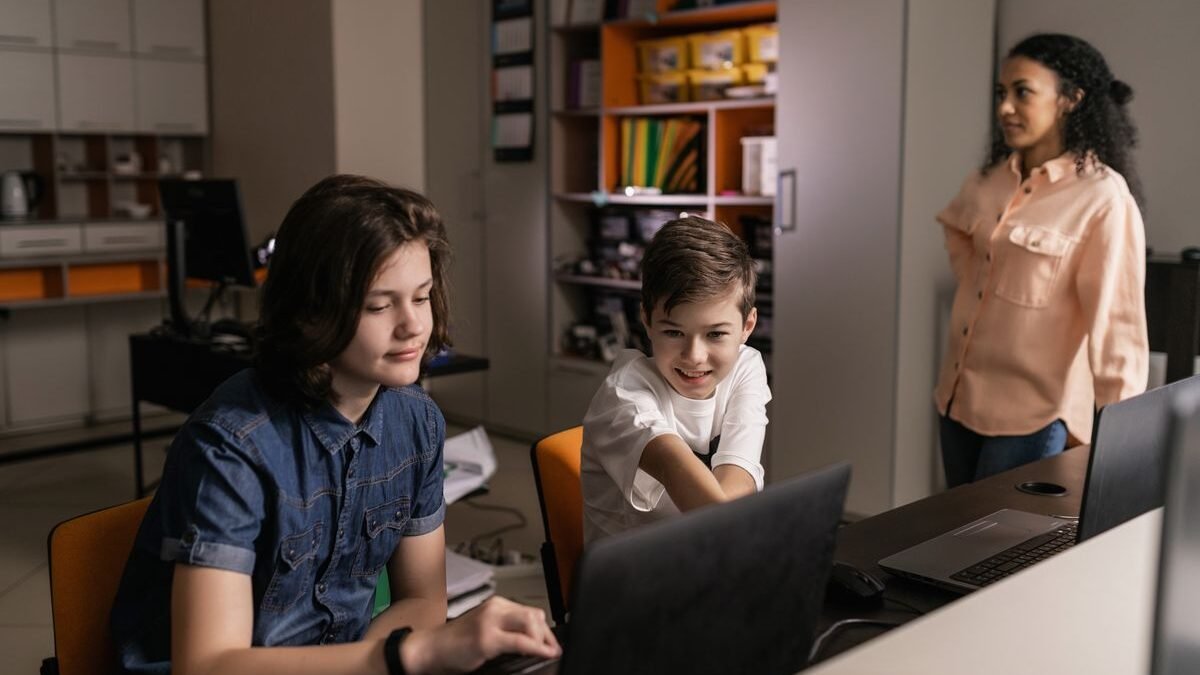
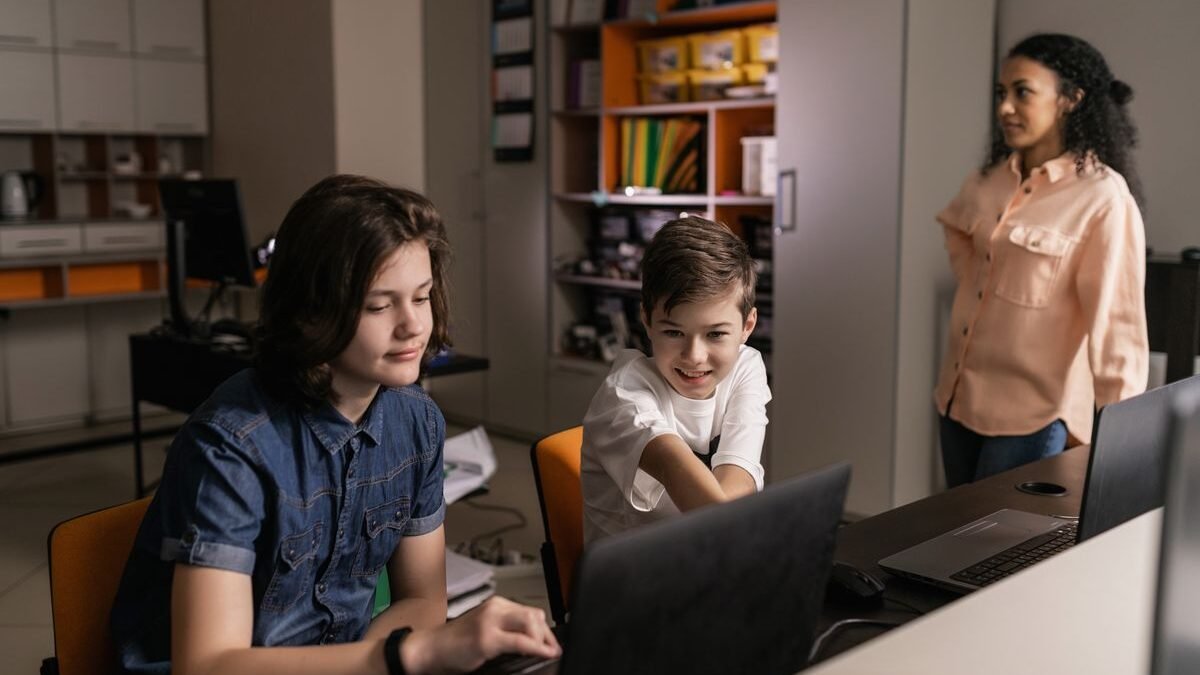
Unblocked games for school are browser games that open on a school network and a school Chromebook, with no download and no install. This guide explains what school networks block and why, which kinds of games schools are most likely to allow, how Chromebooks handle browser games, and how to play only where games are permitted.
One point matters more than any game recommendation in this guide. A game loading on a school network does not mean the school allows it. The filter is a technical control, and the school rules are a separate thing. If your school says no gaming during class, that rule stands even when a game happens to open. This guide does not explain how to get around a school filter, and you should not try. Working around a filter is a way to lose access to the network, not a way to keep playing.
Why Schools Block Game Sites
Schools block game sites for three practical reasons: focus, bandwidth and safety. A classroom network exists for lessons, and a game that pulls attention away from class is a distraction. Some games also use a lot of data or show ads that slow a shared connection for everyone. And some game sites carry real risks: misleading download buttons, aggressive ads and pages that try to install software on a device the school owns.
Network filtering usually works by domain and category. An administrator keeps a list of allowed and blocked sites, or buys a filtering service that sorts sites into categories such as games, social media or streaming. When you open a blocked page, the filter stops it before it loads. That is why the same game can work at home and fail at school. Nothing about the game changed. The network decision did.
Filters are updated over time, which is why a site that worked last week may stop working. New domains are added to block lists, and a site that was missed before can be caught later. The reverse happens too: a site can be allowed when a school decides it is educational enough to permit. The pattern is consistent. Schools allow the sites that look like learning, and they block the sites that look like pure entertainment with heavy ads.
Schools also have a duty to keep students safe online, and filtering is part of that. A school Chromebook is a managed device. The school chooses which sites it can open and which apps it can install, because the device and the network belong to the school, and the school is responsible for what happens on them.
What School Networks Usually Allow
No two schools allow exactly the same sites, because each school sets its own rules. But the pattern is clear enough to be useful. The games schools allow most often are the ones that look like learning, run quietly, and need no download.
School games unblocked by the filter are usually logic and puzzle games, and they are the safest bet. Chess, Sudoku, Minesweeper, 2048 and word games are quiet, they need no sound, and they are easy to explain as a brain break. A teacher who sees a student playing chess during a free period is unlikely to object. The same teacher will object to a loud shooting game during a lesson, and rightly so.
Maths and typing games come next. Cool Math Games is the best known example. Many schools allow it because it presents itself as a maths and logic game site, even though much of what people play there is not maths at all. Its own about page describes a site built around logic and puzzle games, which is part of why administrators treat it differently from a general game portal. HoodaMath is a similar site, built for school use, with games that load quickly on Chromebooks. Typing games are in the same group, because they practise a skill the school already teaches.
Coding games are also widely allowed. Scratch, the free coding platform from MIT, lets young people program interactive stories, games and animations. It is a game platform and a learning tool at once, which is why it appears on many school allow lists. A student building a game in Scratch is doing school work, even though it feels like play.
Unblocked school games are the quiet ones. The games schools block most often are the ones with loud ads, violent content, open chat to strangers, or heavy downloads. A multiplayer shooting game with open chat fails on every one of those counts. A simple puzzle game passes them all. If a game is quiet, simple and educational, it is more likely to be allowed. If it is loud, violent or chatty, it is more likely to be blocked, and against the rules even when it opens.
Chromebook Games Unblocked: What Works on a School Chromebook
A Chromebook is built around the Chrome browser, so a browser game is the natural fit, and unblocked games chromebook players look for are usually the light 2D kind. Games unblocked at school that work best on a Chromebook are light 2D games with keyboard or single click controls, because trackpads handle those well. A game that needs a lot of mouse dragging, a right click or a powerful graphics card will feel awkward, and a heavy 3D game may run slowly on an older machine.
The first limit is the hardware. Most school Chromebooks are light machines with modest processors and memory. They handle 2D puzzle games, arcade runners and simple sports games easily. They struggle with large 3D games, especially ones with detailed graphics and many players. If a game runs slowly, try a simpler game rather than a heavier one. The device is not broken. The game is just too heavy for it.
The second limit is the controls. A Chromebook has a keyboard and a trackpad, and no right mouse button in the usual sense. Games that use arrow keys, WASD or the space bar work well. Games that need a mouse drag to aim, a right click to act, or many keys pressed at once work badly. The best Chromebook games are the ones you can play with one hand on the keyboard and the other doing nothing.
The third limit is sound. School Chromebooks are used in shared rooms, and a game that starts with loud music and no mute button is a bad fit. The best browser games put the mute button where you can see it. Turn the sound off before you start playing, and keep it off. A quiet game is a game you can play without disturbing the room.
The fourth limit is the network itself. A school network is shared by many students at once, and a game that needs a fast, steady connection may stutter when the whole class is online. Light games need little data, so they cope better.
A few games suit a Chromebook particularly well. 2048 and Sudoku are quiet and light. Slope and Run 3 are fast arcade games with simple arrow key controls. Chess works well because it needs no sound and no fast reactions. The Chrome dinosaur game, which opens at chrome://dino in the Chrome browser, works even when the Wi-Fi is down, because it is built into the browser itself.

When to Play at School
The rules about when to play matter as much as the rules about what to play. A game that is fine during a free period can be a problem during a lesson, and the difference is the time, not the game.
The safe times are the ones your school already sets aside: breaks, lunch, free periods and study hall, once your work is done. The unsafe times are lessons, tests and any time a teacher has asked the class to focus. A game played during a test is not a break. It is a way to fail the test and lose the privilege for everyone.
A good habit is to ask once, then remember the answer. Ask a teacher which sites are allowed and when games are fine. Most teachers will give a clear answer, because they would rather tell you than catch you. If the answer is that games are only for breaks, follow it. If the answer is that a particular site is allowed, use that site rather than searching for others.
It also helps to keep sessions short. A five minute puzzle between tasks is a break. A forty minute multiplayer session during a free period can eat the time you needed for homework. Set a limit before you start, and close the tab when the time is up.
Parents can help by agreeing a short list of allowed sites at home, and checking which sites the school already allows. A short list beats a long warning, because it offers a safe option instead of only saying no.
How to Tell If a Game Site Is Safe at School
Safety matters more at school than at home, because the device belongs to the school and the network is shared. A few checks will catch most problems before they reach you.
The first check is the download. A real browser game never needs one. If a page shows a big “Download” button, a prompt to install a player, or a file that appears when you click play, stop. The game is not the risk. The file is. School Chromebooks usually cannot install software at all, which is a protection, but a page that tries is still a page to leave.
The second check is advertising. Free game sites pay their costs with ads, and some use aggressive ones: pop-ups that cover the game, fake play buttons that open other sites, and ads that look like system warnings. A site with one or two visible ads is normal. A site where every click opens a new tab is not. The fake play button is the oldest trick here: the real play button sits inside the game frame, while the fake one sits in an ad box around it.
The third check is personal information. A browser game should not need your name, email address or date of birth. Games that ask you to create an account to play a simple puzzle are asking for more than the game needs. Common Sense Media, a nonprofit that reviews media for families, advises care about what personal information you share online, and asking a parent or teacher when a site asks for it.
The fourth check is age. The ESRB, the organisation that rates games in North America, publishes a ratings guide that explains the age ratings on game pages. A game with a rating for older players, or with violent or mature content, is not a school game, even if it opens on the network. Check the rating before you play, and ask a teacher or parent when you are not sure.
A short check before you play covers all of this:
- The game starts in the browser with no download and no install.
- The page lists the controls and how to play.
- The site address is a real domain, not a string of random words.
- Ads stay in their own boxes and do not cover the game.
- The game has a mute button you can find in seconds.
- Nothing on the page asks for personal details, a login or card details.
- The game content and its age rating fit a school setting.
If a site fails any of these, close it and use a better known portal. The game you want is almost certainly on one of the well known sites that schools already allow.
The Best School-Friendly Games by Type
The games below are the types that fit school best. They are quiet, light, simple to control and easy to stop. Each one suits a different kind of free time.
Puzzle and logic games are the best school games. Chess, Sudoku, Minesweeper, 2048 and word games need thinking more than fast fingers. They make almost no sound, they pause easily, and they are the easiest type to play without disturbing anyone. They are also the games a teacher is least likely to object to.
Typing games are a close second. They practise a skill the school already teaches, they use the keyboard in front of you, and they are quiet. A typing game that shows your speed and accuracy is both a game and a lesson, which is why schools welcome it.
Arcade runners suit a short break. Slope and Run 3 use arrow keys, load quickly, and give you a score to beat in a minute or two. Keep the sound off, and they fit a free period well.
Sports games work when the match is short. A basketball shootout or a soccer game with a few buttons can fill five minutes. Avoid the ones with open chat or heavy 3D graphics, which suit home play more than school.
Educational games are the type schools love most. Geography games, maths games and coding games on Scratch teach a skill while you play.
What to Do When a Game Is Blocked
A blocked page is not a problem to solve. It is an answer. The filter is telling you that the school does not want that site open on its network, and the right response is to accept it and use an allowed site instead.
Do not try to get around the filter. Do not use a proxy, a mirror site, a VPN or any other method to open a blocked page. That is against the school rules on almost every school network, and it can lead to losing network access or facing discipline. It can also put the device at risk, because the sites that promise to bypass a filter are often the least safe sites on the web.
If you think a site should be allowed, ask. A teacher or the school IT staff can tell you whether a site is blocked by mistake, or whether it is blocked for a reason. An educational game that is blocked by mistake can be added to the allow list. A game site that is blocked because it is a game site will stay blocked, and that is the school’s decision, not yours.
If a game you like is blocked, look for the same kind of game on an allowed site. A puzzle game is a puzzle game, whether it is on the blocked site or on Cool Math Games. The game matters less than the place you play it. Play where you are allowed, and the game will be there.
For a fuller explanation of the topic, including how browser games work and how to judge any game site, read our complete guide to unblocked games. It covers the history of browser games, the types of games that suit a browser, and the safety checks in this guide in more detail.

What to Do When a Game Will Not Load
A game that will not load on a Chromebook is usually a simple problem. Try the fixes in order, and stop when the game works.
First, reload the page. A game is a set of files, and one of them may have failed to load. A single reload fixes that more often than any other step.
Second, click inside the game frame. Some games will not start until you click there, because browsers block sound that starts by itself. Click once on the game area, then look for a play button inside the frame.
Third, check the sound and the browser. A school Chromebook may have extensions that block parts of a game. If a game will not load, try it in a guest window or ask a teacher whether the school blocks that site. Do not turn off school management settings or extensions yourself. Those settings belong to the school.
Fourth, check your connection. A 3D game needs a steady connection to load its files. If the page loads but the game stays black, wait a few seconds, then reload once more. A light 2D game will load faster on a shared school network than a heavy 3D one, so try a simpler game if the heavy one will not start.
If none of that works, the problem is probably the site or the network. The site may be down, the game files may be broken, or the network may block the page. Try a different game on a site the school already allows.
Frequently Asked Questions
Are unblocked games for school legal?
Playing a browser game is not illegal in itself, but school rules still apply. A game that opens on the school network can still be against the rules if the school says no gaming during class. Follow the school rules, and play only when and where games are allowed.
How do I play unblocked games on a Chromebook?
Open the game in the Chrome browser, with no download and no install. Light 2D games with keyboard or single click controls work best. Turn the sound off first, and use a site the school already allows.
Why are games blocked on my school Chromebook?
Schools block game sites to keep focus in class, to protect shared bandwidth, and to reduce the risk from unsafe sites. Filters work by domain and category, so a whole site can be blocked even when one game on it is harmless.
What are the best unblocked games for school?
Quiet, light games suit school best: chess, Sudoku, 2048, typing games and coding games on Scratch. Arcade runners such as Slope suit a short free period. Avoid games with open chat, violent content or heavy downloads.
Can I get in trouble for playing games at school?
Yes, if you play during class or on a site the school has blocked. The filter is the school’s decision, and working around it can lead to losing network access or facing discipline. Play only during free time and on allowed sites.
Do school Chromebooks block all games?
No. Many schools allow educational game sites such as Cool Math Games, HoodaMath and Scratch, because they present themselves as learning sites. Each school sets its own list, so ask a teacher which sites are allowed at your school.
What is the Chrome dinosaur game?
It is a small game built into the Chrome browser. It opens at chrome://dino, and it works even when the Wi-Fi is down. It is a simple jumping game, and it is a good fit for a Chromebook because it needs nothing else.
Should I use a VPN to play games at school?
No. Using a VPN or a proxy to get around a school filter is against the rules on almost every school network, and it can lead to losing access. It can also put the device at risk. If a game is blocked, use an allowed site instead.
Watch: School Chromebook Games on Video
Slope Game – High Score Over 200!
Slope played in a browser, showing how the fast 3D runner works with simple arrow key controls. Checked live on 24 Nov 2026.
Slope Tutorial for Beginners
A beginner tutorial for Slope, in four parts, starting with the basics for new players. Checked live on 24 Nov 2026.
Sources
10
- MDN Web Docs, “HTML: HyperText Markup Language”, https://developer.mozilla.org/en-US/docs/Web/HTML
- Adobe, “Adobe Flash Player EOL”, https://www.adobe.com/products/flashplayer/end-of-life-alternative.html
- Common Sense Media, “Articles”, https://www.commonsensemedia.org/articles
- ESRB, “Ratings Guide”, https://www.esrb.org/ratings-guide/
- Cool Math Games, “About Us”, https://www.coolmathgames.com/about-us
- Scratch Foundation, “About Scratch”, https://www.scratchfoundation.org/home
- Khan Academy, “About”, https://www.khanacademy.org/about
- Poki, https://www.poki.com/
- CrazyGames, https://www.crazygames.com/
- HoodaMath, “Best Unblocked Games to Play at School in 2026”, https://www.hoodamath.com/blog/best-unblocked-games-to-play-at-school-in-2026-no-downloads-needed/
Every factual claim on this page was verified against a named source above.