
Adobe Firefly is Adobe’s family of generative AI models, and it is the engine behind most of the AI tools in Photoshop, Illustrator, Premiere Pro, and Adobe Express. You can use it as a standalone web app at firefly.adobe.com, on your phone, or inside the Adobe apps you already open every day. This guide explains what each Adobe AI tool does, where to find it, what it costs, and when a different tool would serve you better.
Adobe’s pitch is simple: the Firefly models were trained on licensed content, including Adobe Stock images, openly licensed material, and public domain work, so images made with them are presented as safe for commercial use. That training choice is the main reason businesses pick Adobe’s tools over rivals that train on scraped web images. For the wider toolkit, see our complete guide to AI tools, and for the big picture on image tools, see our guide to the best AI image generators.
What Is Adobe Firefly?
Adobe Firefly is a set of generative AI models that Adobe trains itself, plus a web app and mobile apps where you use them. It launched in 2023, and it now covers images, video, vectors, and audio. The same models also power the AI buttons inside Photoshop, Illustrator, Premiere Pro, and Express, so one account and one pool of generative credits covers all of them.
The name causes confusion because it means three things at once. First, the Firefly models: Image, Vector, Design, and Video models that Adobe builds and trains. Second, the Firefly web app and phone apps, where you generate images, video, and audio from a prompt. Third, the AI features inside Adobe’s other apps, such as Generative Fill in Photoshop and Generative Extend in Premiere Pro.
Since 2025, the Firefly app has also offered partner models alongside Adobe’s own, including Google’s Nano Banana, OpenAI’s GPT Image, Runway, and Kling. You pick the model from a menu before you generate. Adobe’s own models are the ones covered by its commercial-use promise; partner models follow their own terms, so check the model you pick before using an image in a client project.
Firefly Image Models
The Firefly Image model turns a text prompt into an image. You describe the scene, pick an aspect ratio, a style, and a model, and the app returns four variations. The current image model understands longer prompts and recognises more landmarks and cultural symbols than the first version, and it offers prompt guidance that suggests ways to expand or reword a prompt.
Generative Match lets you upload a reference image and ask Firefly to generate new images in a similar style. Photo Settings adds photography-style adjustments, such as depth of field and angle, inside the web app. Both features are aimed at keeping a consistent look across a set of images, which matters for brand work and social campaigns.
Firefly Boards is the mood board workspace in the web app. You collect images and video, generate variations, and remix ideas until a direction clicks. It replaces the old habit of keeping reference images in a separate folder and is the closest thing Firefly has to a planning tool.
Generative Fill and Generative Expand in Photoshop
Generative Fill is the most used Adobe AI tool, and it lives in Photoshop. You select part of an image, type what should be there, and Photoshop paints it in. It can add an object, swap a background, or remove something you do not want. Generative Expand works the same way on the edge of a canvas: you drag the canvas larger and describe what should fill the new space.
The Photoshop AI tools go beyond fill. The Remove tool brushes away distractions, the Object Selection tool picks out a subject with one click, and the AI-powered selection tools can isolate hair, sky, or a person. A practical workflow is to use Generative Fill for the big change, then the Remove tool and manual retouching for the details the model got wrong.
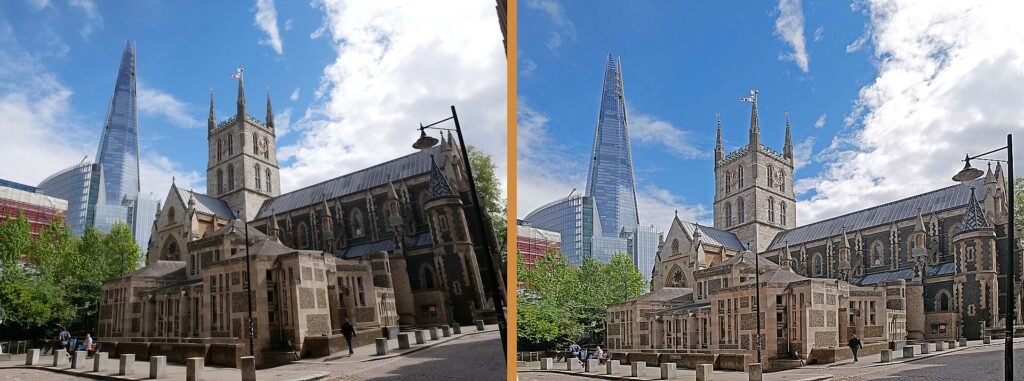
If you are wondering how to use the Photoshop generative AI tool for the first time, start with a copy of your image, make a rough selection, and keep the prompt short: one subject, one action, one setting. Long prompts with several ideas in one sentence tend to produce confused results. Four variations appear for each generation, and you can regenerate as many times as your credits allow.
Adobe AI Tools in Premiere Pro
Premiere Pro’s AI tools focus on video. Generative Extend adds a few extra seconds to the end of a clip when the shot runs out just before the cut, which saves a reshoot for B-roll and transitions. It is powered by the Firefly Video model, and it works best on short, simple shots rather than fast camera moves.
Other Premiere Pro AI tools handle the routine work. Speech to Text generates captions and a transcript you can edit like a document, and Text-Based Editing lets you cut a video by deleting words from the transcript. Audio tools clean up dialogue and balance levels, and the auto-reframe feature crops a horizontal edit for vertical social video.
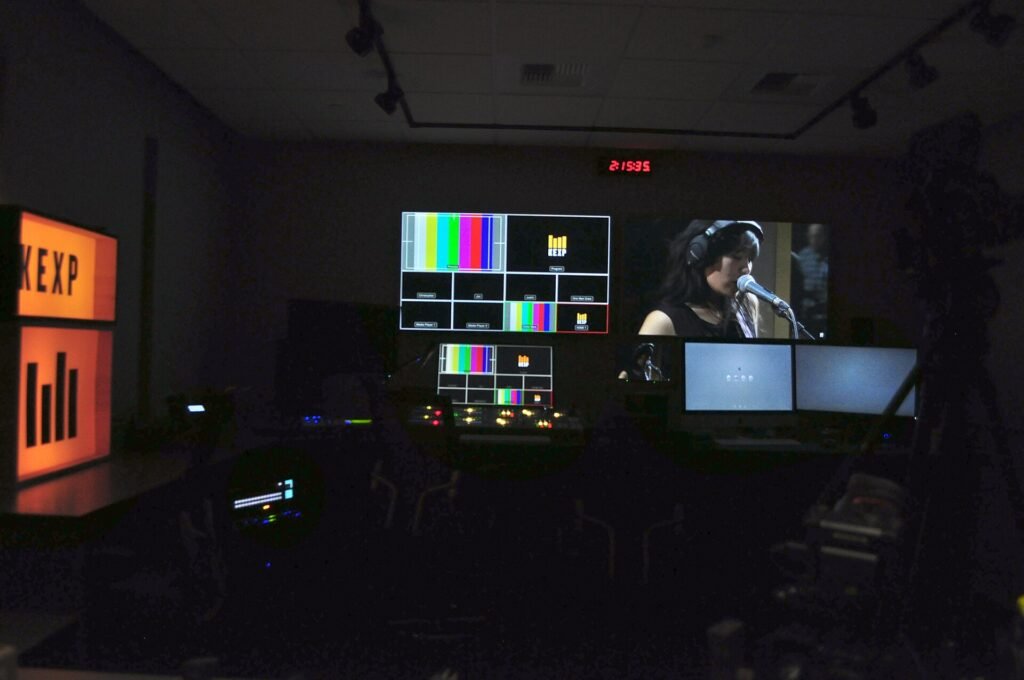
The Firefly web app also generates video directly. Text-to-video creates a short clip from a description, and image-to-video animates a still image. You can choose Adobe’s own video model or a partner model such as Kling or Runway, and the choice changes the look: Adobe’s model is tuned for commercially safe output, while partner models often handle motion and camera moves differently. Clips are short, so plan on using them as B-roll or transitions rather than full scenes.
Adobe Illustrator AI Tools
Illustrator’s AI tools generate editable vectors, which is different from the flat images other generators produce. Text to Vector creates scenes, subjects, icons, and patterns from a prompt, organised into groups and layers you can edit. Because the output is vector, you can scale it, recolour it, and separate its parts without losing quality.
Generative Recolor takes an existing vector artwork and recolours it from a text prompt, which is useful for trying brand palettes on a logo or pattern. Text to Pattern generates tileable patterns, and Mockup places your artwork on a realistic product photo, such as a mug or a T-shirt, so you can show a client how a design will look in use.
These tools suit logo work, icons, packaging, and repeating patterns. They are less useful for photorealistic images, which is where the Firefly Image model or Photoshop belongs.

Adobe Express and the Rest of the Suite
Adobe Express is Adobe’s template-based design app, and it has Firefly features built in. You can generate an image, remove a background, or animate text inside a social post template without opening Photoshop. For marketers and small businesses, Express is often the fastest way to use Adobe’s AI tools, because the templates handle layout and sizing.
Lightroom has AI masking and a Generative Remove tool for cleaning up photos, and InDesign can use Firefly images inside layouts. The Firefly AI Assistant, now in public beta for paid users, works across Firefly and Photoshop: you describe a multi-step project in conversation and it drafts a plan, picks the right tools, and remembers your preferences. It is still a beta, and it sits outside the commercial-use indemnity that covers Adobe’s own models, so treat its output with the same care as any other AI draft.

Adobe has also connected Firefly to other platforms. Since June 2026, the tools work inside ChatGPT, Claude, and Microsoft 365 Copilot, with Gemini and Slack named as next. That means you can generate an Adobe image without leaving the chat or document app you are already in.
Firefly Pricing and Generative Credits
Firefly uses a credit system. Every image, video, or audio generation spends credits, and each plan gives you a monthly allowance. There is a free plan with a small number of credits, enough to try the tools, and paid plans that cost roughly $10 to $200 a month depending on how many credits you need. Prices were checked in November 2026 and change, so confirm the current plans on Adobe’s site before you buy.
Paid plans also give unlimited standard generations, such as text-to-image, Generative Fill, and vector creation, on Adobe’s own models. Video and partner models cost more credits per generation, and 1080p video spends credits faster than still images. If you mostly edit photos in Photoshop, a small plan is enough. If you generate video every day, count the credits per clip before committing.
Creative Cloud subscribers get Firefly credits included with their subscription, and the credits are shared across the web app, the phone app, Photoshop, Illustrator, Premiere Pro, and Express. Check how many credits your current plan includes before buying a separate Firefly plan, because you may already have what you need.
Commercial Safety, Content Credentials, and Limits
The strongest reason to choose Adobe’s AI tools is the training data. Adobe says the Firefly models were trained on Adobe Stock, openly licensed content, and public domain material, and that the models never train on what you create or upload. That is why Adobe presents Firefly output as safe for commercial use, and why agencies use it for client work where rights matter.
Content Credentials are attached to generated images. They record that the image was made or edited with AI, which helps readers and clients know what they are looking at. The EU AI Act’s transparency duties, which took effect in August 2026, require AI-generated content to be marked in machine-readable form, so keeping these credentials intact is good practice as well as honest.
There are limits worth knowing. Firefly’s image model aims for a clean, stock-photo look, and it is less good at unusual artistic styles than tools built for that purpose. Text inside generated images can still come out misspelled. Video generations are short, and the free plan does not give you enough credits for serious video work. Partner models have their own rules, and text-driven generation is blocked on accounts in mainland China.

Who Should Use Adobe AI Tools
Photographers and retouchers get the most from Generative Fill and Generative Expand in Photoshop, which save hours on routine edits. Graphic designers benefit from Illustrator’s vector tools and Generative Recolor, which keep artwork editable. Video editors use Generative Extend, captions, and text-based editing to cut editing time. Marketers and small teams get the most from Express and the Firefly web app, where templates and quick generations cover social posts without a designer.
If you need photorealistic images with a distinctive style, or long video clips, other tools may fit better. Firefly wins when you need commercially safe images, editable vectors, and AI features inside the Adobe apps your team already uses.
Canva and Figma AI Tools in Brief
Canva and Figma are the other design platforms most readers compare with Adobe, and each has its own full guide on this site.
Canva’s AI tools focus on speed for non-designers: text-to-image generation, background removal, Magic Edit, and Magic Write for copy, all inside templates for social posts, presentations, and print. If your team has no designers, Canva is usually the faster choice. Read our full guide to Canva AI tools for the details.
Figma’s AI tools focus on product and interface design: generating UI layouts from prompts, renaming layers, summarising feedback, and prototyping flows. They help product teams move from an idea to a clickable prototype quickly. Read our full guide to Figma AI tools for the details.
How to Choose Between Adobe’s AI Tools
Start from the deliverable. If the output is a photo or a social image, use the Firefly web app or Photoshop. If it is a logo, icon, or pattern, use Illustrator. If it is a video, use Premiere Pro or the Firefly video tools. If it is a quick social post, use Express.
Then check the rights. If the work is for a client or a public campaign, use Adobe’s own models and keep the Content Credentials attached. If you use a partner model, read its terms first. Finally, count the credits. A plan that looks cheap can get expensive if you generate a lot of video, so run a small batch first and see how many credits a typical week actually uses.
Video: How to Use Adobe Firefly to Create AI Art
The video below walks through the Firefly basics: text-to-image generation, Generative Fill, text effects, and Generative Recolor. It is published by Elegant Themes, and its description carries an affiliate disclosure, so treat its product recommendations accordingly.
Frequently Asked Questions
Is Adobe Firefly free?
Yes, there is a free plan with a small monthly credit allowance. It is enough to try text-to-image generation and Generative Fill. Paid plans start at roughly $10 a month and add more credits and features.
Is Adobe Firefly safe for commercial use?
Adobe says images made with its own Firefly models are safe for commercial use because the models were trained on licensed Adobe Stock content, openly licensed material, and public domain work. Partner models in the Firefly app follow their own terms, so check the model before using its output commercially.
What is the difference between Firefly and Photoshop’s AI tools?
Firefly is the model family and the standalone web app. Photoshop’s AI tools, such as Generative Fill, are powered by Firefly models but run inside Photoshop, where you can combine them with layers, masks, and manual retouching.
Can Firefly generate video?
Yes. The Firefly web app has text-to-video and image-to-video tools, and Premiere Pro has Generative Extend for lengthening clips. The clips are short, so they work best as B-roll or transitions.
Do I need a Creative Cloud subscription to use Firefly?
No. The Firefly web app works with a free Adobe account, and there are paid Firefly plans separate from Creative Cloud. Creative Cloud subscribers get credits included, so check your plan before buying a separate one.
Which Adobe app has the best AI tools for beginners?
Adobe Express is the easiest starting point, because templates handle layout and sizing while Firefly generates the images. Photoshop is the better choice once you need precise edits.
Can I use Firefly images in client work?
Yes, if you use Adobe’s own models. Keep the Content Credentials attached so the client can see the image was AI-generated, and keep a record of which model and plan you used.
Sources
7
- Adobe, Adobe Firefly: Free Generative AI for Creatives
- Coursera, Adobe Firefly: Key Features and Use Cases
- Creative Bloq, Adobe Firefly explained: everything you need to know
- TechRadar, How to use Adobe Firefly in 30 minutes
- Beebom, How to Create Stunning AI Images and Videos with Adobe Firefly
- Elegant Themes, How to Create AI Art with Adobe Firefly in 2025 (Detailed Tutorial)
- European Union, Regulation (EU) 2024/1689 (EU AI Act)
Every factual claim on this page was verified against a named source above.