


A 500 Internal Server Error means the server ran into an unexpected condition and could not finish your request. The fix depends on which side of the screen you are on: a visitor can usually only reload and wait, while a site owner needs to read the error log and repair the broken code, file, or setting behind it.
This guide covers both sides: what a 500 error is, what causes it, the steps to fix it on Apache, NGINX, IIS, and WordPress, and how to stop it coming back. For the full map of status codes, start with our list of http error codes.
What Is a 500 Internal Server Error?
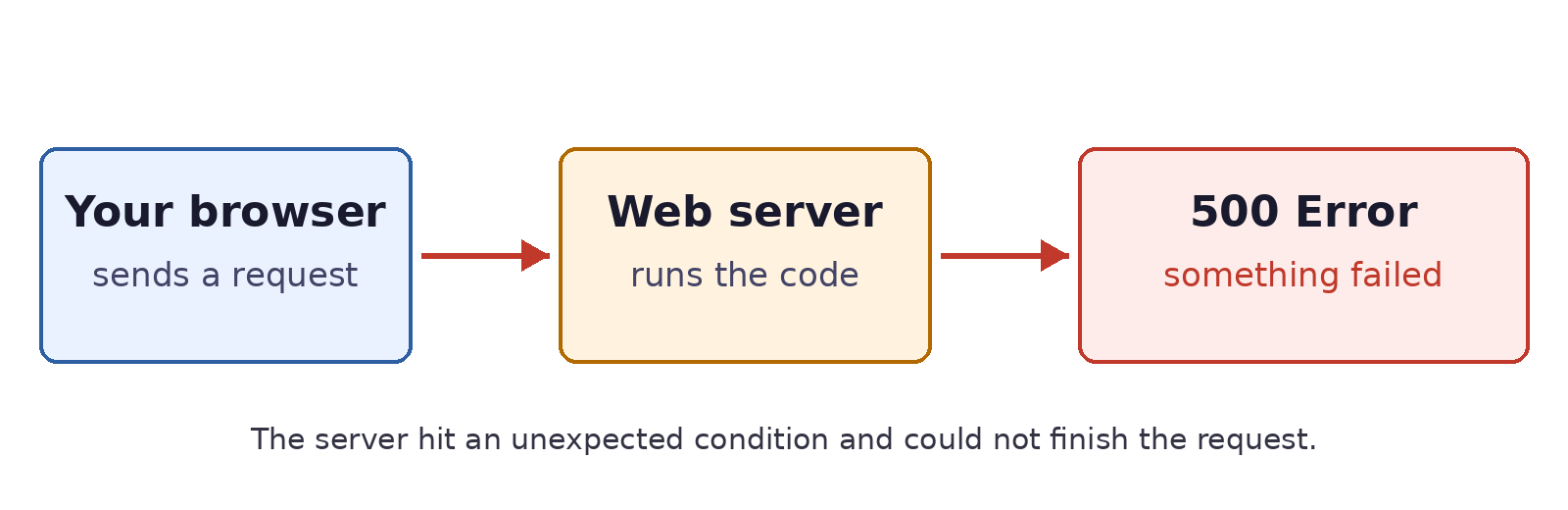
An HTTP 500 error is the server’s way of saying something went wrong on its side. RFC 9110, the standard that defines HTTP, puts it plainly: the 500 status code indicates that the server encountered an unexpected condition that prevented it from fulfilling the request.
A 500 server error is the generic catch-all response MDN Web Docs describes, used when no more specific error code fits.
In plain language: your browser asked the server for a page, the server started working on it, something broke partway through, and the server gave up instead of sending the page. The problem is on the server, not on your computer or connection.
A 500 sits in the 5xx family, where every code means a server failed somehow. Our guide to the error 502 covers the next most common one.
What Does a 500 Error Look Like?
The wording changes from site to site. These are the versions you are most likely to see:
- 500 Internal Server Error
- Internal Server Error 500
- HTTP Error 500
- HTTP Status 500: Internal Server Error
- Error 500 Internal Server Error
- 500. That is an error (the short message Google shows)
- Server Error in ‘/’ Application (the message ASP.NET sites show)
- HTTP Error 500.19: Internal Server Error (IIS configuration errors)
- HTTP Error 500.30: ASP.NET Core app failed to start
Some sites show a plain white page; others show a branded page with a search box. The look does not matter: every version means the server could not complete the request.

What Causes a 500 Internal Server Error?
There is no single cause: MDN lists improper configuration, out-of-memory problems, unhandled exceptions, and wrong file permissions, and most 500 errors trace back to one of these:
A broken .htaccess file. On Apache, a typo, a bad rewrite rule, or a directive the server does not allow in the .htaccess file stops the whole site loading.
Wrong file or folder permissions. If the web server cannot read a file it needs, the request fails. Permissions often break after a migration or a restore.
A fatal PHP error. A syntax error in a script, a missing PHP extension, or a plugin that crashes during load ends the request with a 500 instead of a page.
The PHP memory limit. When a script asks for more memory than PHP allows, PHP stops it with a fatal error. The default limit is 128M, and heavy pages and page builders can exceed it.
A database connection failure. If the site cannot reach its database, because the database service is down, the credentials are wrong, or the database is damaged, dynamic pages cannot load.
A bad plugin or theme. On WordPress and other content management systems, a plugin or theme update can introduce code that crashes on every page load.
Server resource exhaustion. A full disk or exhausted memory leaves the server unable to process requests, often after traffic spikes or when log files grow unchecked.
A bad server configuration. On IIS, an invalid web.config file produces HTTP error 500.19; on NGINX, a rewrite loop can do the same.
A failing API or upstream service. When your site calls another service and that service returns a 500 of its own, your page often fails too. An API error 500, or an OAuth error where the request failed with status code 500, usually means the provider’s server hit a problem.
If You Are a Visitor: What You Can Do
When you are only visiting a site, the fault sits with its server. A few quick checks are still worth trying, because the error is sometimes temporary or local to your setup.
Reload the page. Press F5 on Windows or Command+R on Mac, or use the browser’s reload button. A brief overload or a failed request can clear on the second try.
Clear your browser cache and cookies. A stored copy of the error page can keep showing after the site recovers. Clearing cached files and cookies for the site forces a fresh request.
Switch networks. Move from Wi-Fi to mobile data, or the other way round, to rule out a problem with your connection.
Wait and come back. If the site’s owners are already fixing the problem, the error may clear within minutes.
Contact the site owner. If the error lasts more than a day, use the site’s contact page or support email and include the page address and the time you saw the error. Owners cannot fix a 500 they do not know about.
500 Errors on Big Sites and Services
The same error appears on big services too: a Google 500 error, a Google Health server error, a YouTube 500 error, a Canva 500 internal server error, an Outlook error 500, a GitHub 500 error, a Shopify 500 internal server error, a USCIS 500 error, and a Fitbit error code 500 all mean that service’s servers failed, so check its status page and wait.
If You Own the Site: How to Fix a 500 Error
This is how to fix a 500 internal server error: work through these steps in order, starting with the error log, which usually names the exact file, line, or directive behind the failure. Back up the site files and database before you change anything.
Step 1: Read the Error Log First
Server error logs are the fastest route to the cause. The location depends on your server:
| Server | Log location |
|---|---|
| Apache on Ubuntu or Debian | /var/log/apache2/error.log |
| Apache on Fedora or RHEL | /var/log/httpd/error_log |
| NGINX | /var/log/nginx/error.log |
| PHP-FPM on Ubuntu or Debian | /var/log/php8.3-fpm.log (version number varies) |
| PHP-FPM on Fedora or RHEL | /var/log/php-fpm/www-error.log |
Look at the entries written at the moment the page failed: a good entry names the error, the file, and the line number. On NGINX, the error_log directive controls where the log goes and how much it records; the default level is error, and raising it to info records more of the exchange with the upstream service. If you use Cloudflare, the cause is not always in the origin log: check any load balancer, cache, proxy, or firewall between Cloudflare and the origin, and report the exact error code, time and timezone, and failing URL to your host.
Step 2: Fix a Broken .htaccess File
On Apache, the .htaccess file holds per-directory configuration, and a single bad line can take the whole site down. Apache only honours directives the AllowOverride setting permits; a directive that is not allowed produces a server error.
Rename the file to .htaccess-old and reload. If the site loads, the problem is inside that file: fix it section by section or replace it with a clean copy. On WordPress, Settings, then Permalinks, then Save Changes regenerates the file.
# BEGIN WordPress
<IfModule mod_rewrite.c>
RewriteEngine On
RewriteBase /
RewriteRule ^index.php$ - [L]
RewriteCond %{REQUEST_FILENAME} !-f
RewriteCond %{REQUEST_FILENAME} !-d
RewriteRule . /index.php [L]
</IfModule>
# END WordPress
That block is the standard WordPress .htaccess content. Anything else in your file deserves a check: a misspelled directive, a missing closing tag, or a rule pointing at a folder that no longer exists are the usual faults.
Step 3: Reset File and Folder Permissions
Wrong permissions are a frequent cause of 500 errors. The standard values are 644 for files and 755 for folders: set them from your hosting panel’s file manager or an FTP client, and reset the whole site to those values after a migration, deployment, or restore.
Step 4: Raise the PHP Memory Limit
PHP’s memory_limit directive sets the maximum memory a script may allocate, and the default is 128M. When a script exceeds it, PHP stops with a fatal error and the visitor sees a 500. Raising the limit is a quick fix, but treat it as a patch: a plugin that needs far more than the default may need attention itself.
In php.ini, set:
memory_limit = 256MIn WordPress, add this line to wp-config.php:
define('WP_MEMORY_LIMIT', '256M');Restart PHP-FPM or Apache after changing php.ini. If the error persists at 256M, find the script consuming the memory instead of raising the limit again.
Step 5: Deactivate Plugins and Switch the Theme
A WordPress 500 error is most often caused by a faulty plugin or theme, especially right after an update. Deactivate all plugins at once by renaming the wp-content/plugins folder, then reload the site. If it loads, rename the folder back and reactivate plugins one at a time until the error returns: the last one enabled is the problem. If the error stays with all plugins off, switch to a default theme such as Twenty Twenty-Five.
Enable WordPress debug logging to see the real error. Add these lines to wp-config.php, before the line that says “That is all, stop editing!”:
define('WP_DEBUG', true);
define('WP_DEBUG_LOG', true);
define('WP_DEBUG_DISPLAY', false);
Errors are then written to wp-content/debug.log. Read the newest entries, fix the fault they name, and turn WP_DEBUG back off: a debug log left running on a live site keeps growing and records details that should not be readable.
Page builders such as Elementor add their own failure points. An Elementor 500 error is most often a low PHP memory limit, a plugin conflict, or a corrupted .htaccess file, so work through the memory, plugin, and .htaccess steps above first, and clear the browser, plugin, and CDN caches as well.
Step 6: Check the Database Connection
If the site cannot reach its database, dynamic pages fail. Confirm the database service is running, then check the credentials in your application’s configuration file (wp-config.php on WordPress): a wrong database name, username, password, or host produces a 500 on every page that needs data.
Keep one thing separate: SQL Server error 18456 is a login failure, not an HTTP 500. The database refused the login, which is a different problem with its own fix, even though it can also stop a site loading.
Step 7: Check the PHP Version and Server Resources
A PHP version that does not suit your code can produce fatal errors on every request. If the error started after a PHP change, switch to another version in your hosting panel and see whether the site recovers.
Check the server’s resources too: a full disk stops the server writing sessions, caches, and logs, and exhausted memory kills worker processes. Run df -h and free -h to see the state of things.
If the disk is full, clear old logs and backups you no longer need. If memory is exhausted, find the process using it and restart the affected service.
Step 8: Restore a Backup or Ask Your Host
If none of the steps above finds the cause, restore the site from a backup taken before the error first appeared. With no usable backup, contact your host with the exact 5xx error code and message, the time and timezone, and the failing URL. Hosts see this error every day.
500 Errors on NGINX and IIS
The general steps above apply everywhere, but NGINX and IIS each have their own failure points.
On NGINX, a 500 internal server error often comes from the application behind it rather than from NGINX itself: NGINX passes the request to PHP-FPM, and when PHP-FPM returns a 500, NGINX passes that status to the browser. Check the PHP-FPM log first, then the NGINX error log. Two NGINX-side causes are worth knowing: a rewrite loop, where a rule keeps sending the request back to itself, and unwritable buffer directories. Before restarting NGINX, run nginx -t: it reports the file and line of a bad directive.
On IIS, an IIS 500 error is usually HTTP Error 500.19, which means the site’s configuration is invalid. Microsoft’s guide breaks it down by the HRESULT code on the page: 0x8007000d is a malformed XML element or a missing IIS module, 0x80070021 is a configuration section locked at a higher level, and 0x80070005 is a permissions problem. Read the code and fix the matching cause.
A related IIS error is HTTP Error 500.30, an ASP.NET Core app that failed to start. The app threw an exception during startup, and the real exception is in the Windows Application event log under the IIS ASP.NET Core Module, or in the stdout log if enabled. Check there first and confirm the right .NET runtime is installed.
Other 5xx Errors
A 500 is not the only server error. A 5xx server error is any code from 500 to 599, and every one of them means the server failed somehow. Three close relatives each have their own guide.
Error 502: Bad Gateway. A 502 means the server, acting as a gateway or proxy, received an invalid response from an inbound server, usually a dead or misconfigured upstream service. Our guide to error 502 explains how to tell it apart from a 500 and how to fix it.
Error 503: Service Unavailable. A 503 means the server is currently unable to handle the request because of a temporary overload or scheduled maintenance. The server may send a Retry-After header suggesting how long to wait. Our guide to the 503 error covers overload, maintenance mode, and crashed services.
Error 504: Gateway Timeout. A 504 means the server, acting as a gateway or proxy, did not receive a timely response from an upstream server it needed to reach: the upstream is too slow or unreachable. Our guide to the 504 error explains how to trace the slow hop.
The rest of the family is rarer: a 501 means the server does not support the functionality the request needs, and a 505 means it does not support the HTTP version used. Our guide to 505 error and the other uncommon 5xx codes covers 501, 505, and 508 together.
How to Stop 500 Errors Coming Back
Fixing a 500 once is only half the job.
Monitor the site and alert on new 500s. Set up monitoring that checks the site every minute and alerts you when a 500 appears. The best way to alert on new 500 errors is a monitor that records the status code, URL, and time, so you can match each alert to its log entry. Our guide to SaaS monitoring tools compares the best tools for server error monitoring.
Keep backups you have actually restored. A backup you never restored is a hope, not a plan. Restore one to a staging copy now and then to confirm it works.
Keep PHP, plugins, and themes updated. Outdated code is a common source of fatal errors. Update one thing at a time so a new 500 points at the last change.
Watch disk space and log size. Set an alert for disk usage above 80 percent: logs that grow without rotation fill disks quietly.

Frequently Asked Questions
What is a 500 error?
The 500 error code is an HTTP status code meaning the server hit an unexpected condition and could not complete the request. No more specific error code fits, so the message itself says nothing about the cause.
What does error 500 mean?
The 500 error meaning is simple: something failed on the server while it was handling your request. Your browser and connection are fine; the website’s server, code, or database is where the problem sits.
How do I fix a 500 internal server error?
Read the server error log first: it names the cause. Then work through the usual suspects: a broken .htaccess file, wrong permissions, the PHP memory limit, a faulty plugin or theme, and the database connection. If the log points nowhere, restore a backup or ask your host.
Is a 500 error my fault as a visitor?
No. A 500 is a server-side error. Try reloading the page, clearing the cache, or switching networks; if the error stays, the site owner has to fix it.
How do I fix a 500 error in WordPress?
Regenerate the .htaccess file from Settings and Permalinks, raise the PHP memory limit to 256M, deactivate all plugins and reactivate them one at a time, and enable WP_DEBUG logging to read the real error in debug.log.
What is HTTP error 500.19?
It is an IIS error meaning the site’s configuration is invalid. The HRESULT code names the cause: 0x8007000d is malformed XML or a missing module, 0x80070021 is a locked configuration section, and 0x80070005 is a permissions problem.
What is the difference between a 500 error and a 502 error?
A 500 means the server itself failed while handling the request; a 502 means a gateway or proxy received an invalid response from an upstream server. A 500 points at the site’s own code or configuration, a 502 at the service behind it.
Can a 500 error go away on its own?
Yes, sometimes: a brief overload, a restarting service, or a deploy in progress can produce 500s that clear within minutes. If the error lasts more than an hour, or appears on every page, something is broken and needs the steps above.
Watch: Fixing a 500 Internal Server Error
How to Fix the 500 Internal Server Error in WordPress, WPBeginner, 6 minutes 27 seconds. Covers regenerating the .htaccess file, raising the PHP memory limit, deactivating plugins, and reuploading WordPress core files. Checked live on 23 Nov 2026.
How To Fix The 500 Internal Server Error in WordPress, WinningWP, 6 minutes 48 seconds. A beginner-friendly walkthrough: backups first, then plugins, themes, and the .htaccess file. Checked live on 23 Nov 2026.
Sources
12
- IETF, RFC 9110: HTTP Semantics, Section 15.6.1 — https://www.rfc-editor.org/rfc/rfc9110#section-15.6.1
- MDN Web Docs, “500 Internal Server Error” — https://developer.mozilla.org/en-US/docs/Web/HTTP/Reference/Status/500
- Microsoft Learn, “HTTP Error 500.19 on Internet Information Services (IIS) webpages” — https://learn.microsoft.com/en-us/troubleshoot/developer/webapps/iis/site-behavior-performance/http-error-500-19-webpage
- Apache HTTP Server Documentation, “.htaccess files” — https://httpd.apache.org/docs/2.4/howto/htaccess.html
- NGINX Documentation, “Core functionality” (error_log directive) — https://nginx.org/en/docs/ngx_core_module.html
- PHP Manual, “Description of core php.ini directives” (memory_limit) — https://www.php.net/manual/en/ini.core.php
- WordPress.org, “Debugging in WordPress” — https://wordpress.org/documentation/article/debugging-in-wordpress/
- Cloudflare Docs, “Cloudflare 5xx errors” — https://developers.cloudflare.com/support/troubleshooting/cloudflare-errors/troubleshooting-cloudflare-5xx-errors/
- SiteGround KB, “What is HTTP 500 Internal Server Error and How to Fix It?” — https://www.siteground.com/kb/internal_server_error_500
- Linuxize, “500 Internal Server Error: What It Means and How to Fix It” — https://linuxize.com/post/500-internal-server-error/
- WPBeginner, “How to Fix the 500 Internal Server Error in WordPress” — https://www.wpbeginner.com/wp-tutorials/how-to-fix-the-internal-server-error-in-wordpress/
- Start Debugging, “Fix: HTTP Error 500.30 – ASP.NET Core app failed to start after deploying to IIS” — https://startdebugging.net/2026/08/fix-http-error-500-30-aspnet-core-app-failed-to-start-on-iis/
Every factual claim on this page was verified against a named source above.