


A Windows error is a message that Windows, an app, or a driver shows when something stops working the way it should. It usually comes with a code, such as 0x80070005, or a short description, such as “out of memory”. This guide explains what the most common Windows errors mean and the documented steps that fix them, in the order that wastes the least time. For the full map of error codes behind these messages, start with our hub of error code fixes.
Start Here: Read the Error Before You Fix It
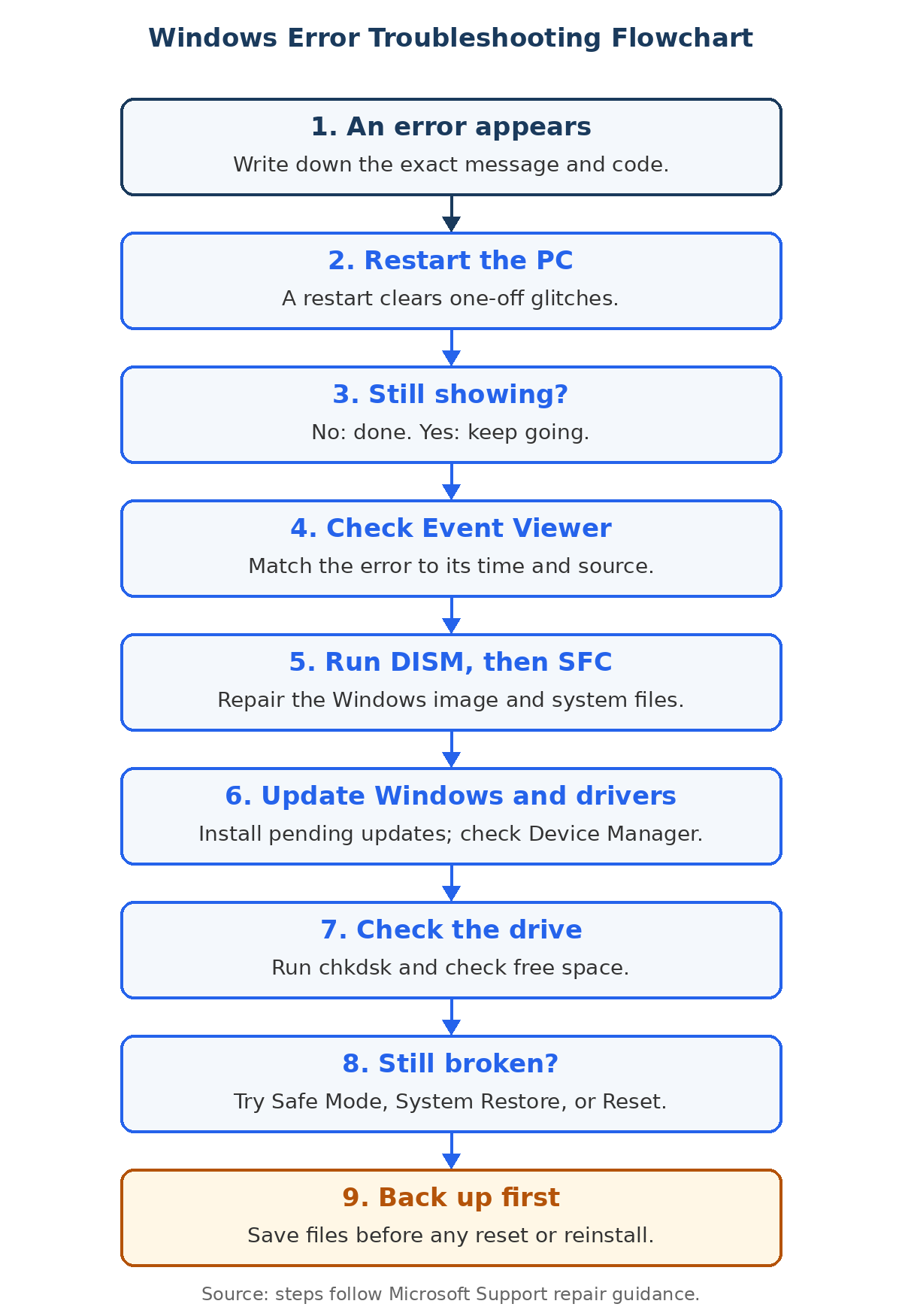
The fastest way to fix a Windows error is to read it properly first. A code copied exactly is worth more than an hour of guessing, because two errors that look alike often need different fixes. Write down the full message, the code, and what you were doing when it appeared.
Three built-in tools help you pin the cause down:
- Event Viewer. Press Windows + X, open Event Viewer, then open Windows Logs and look at System and Application around the time the error happened. Error entries there carry a source name and an event ID, and the Windows error log is the first place support will ask about.
- Reliability History. Search for “reliability”, open View reliability history, and look for red crosses on the day the problem started. It shows app crashes, Windows failures, and driver problems on one timeline.
- Device Manager. Right-click Start, open Device Manager, and look for a yellow exclamation mark. That mark points to a device whose driver is missing, broken, or in conflict.
Also note what changed just before the error: a Windows update, a new driver, a new app, new hardware, or a power cut. Most repeating Windows errors line up with a recent change, and undoing that change is often the fix.
The Repair Sequence That Fixes Most Windows Errors
Many different Windows errors share the same few causes: damaged system files, a stuck update, a bad driver, low disk space, or a failing drive. Microsoft Support documents one repair order for damaged system files. Run it from an administrator Command Prompt: right-click Start, open Terminal (Admin) or Command Prompt (Admin), and run DISM first, then SFC.
DISM.exe /Online /Cleanup-image /Restorehealth
sfc /scannow
DISM repairs the Windows image that SFC draws on, so running DISM first is what makes the SFC scan able to replace damaged files. Microsoft Support states that SFC scans protected system files and replaces corrupted files with a cached copy, and that the scan should run until verification reaches 100 percent. If SFC reports files it could not repair, the details are in the CBS.log file, and the next step is usually Safe Mode or a repair install rather than repeating the same scan.
After the scans, restart and try the thing that failed. If the error is still there, work through the rest of the sequence:
- Install pending updates. Open Settings, then Windows Update, and select Check for updates. Updates include fixes for known errors, and an update that failed halfway can itself be the cause of the next error.
- Check Device Manager for driver problems. A yellow exclamation mark means the driver needs updating, rolling back, or reinstalling. Get drivers from the PC maker or the hardware maker, not from a random driver download site.
- Free up disk space. Microsoft Support advises keeping 10 to 15 percent of the system drive free, because Windows needs room for swap files and updates. Open Settings, then System, then Storage, and clear temporary files.
- Check the drive. From an administrator Command Prompt, run
chkdsk /f C:and restart if asked. Microsoft Support lists this as a repair step for upgrade and installation errors, and it catches file system damage that SFC cannot see. - Test the memory. Type
mdschedin the Run dialog (Windows + R) to open Windows Memory Diagnostic. Random crashes and changing error codes point at memory more often than any single app does. - Try Safe Mode. Safe Mode starts Windows with only essential drivers and services. If the error does not appear in Safe Mode, a driver, startup app, or service is the likely cause.
Out of Memory Errors
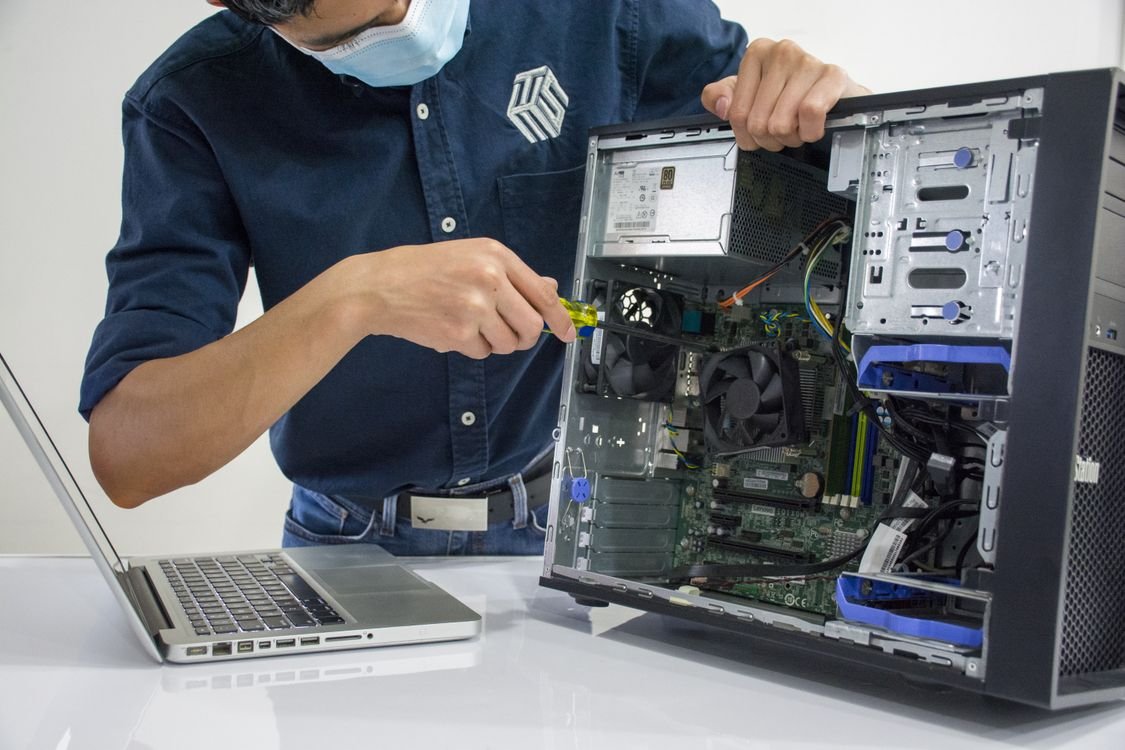
An out of memory error means a program asked for more memory than Windows could give it at that moment. It does not always mean the PC has too little RAM. A single app with a memory leak, a browser with dozens of heavy tabs, or a game loading a large scene can all run out of memory on a PC that otherwise works fine. The mapped searches for this error cluster around Chrome, so start there if the message appears in the browser.
In Chrome. The message usually reads “Out of Memory” with the error code out of memory, or appears as an “Aw, Snap!” page. Close tabs you do not need, especially video and web app tabs, then reload the page. Open Chrome’s own Task Manager with Shift + Esc to see which tab or extension is using the most memory, and end the heaviest ones. Turn extensions off one at a time at chrome://extensions to find a faulty one. If the same page fails in other browsers too, the page itself is the problem, not Chrome. Our guide to chrome errors covers the browser side in full.
In apps and games. Close other programs before starting a heavy app, and check the app’s own memory use in Task Manager. A game that reports “out of video memory” is usually short of graphics memory rather than system RAM, so lowering texture quality or updating the graphics driver helps more than closing browser tabs.
Across the whole PC. If out of memory errors appear in many different programs, check how much RAM the PC has and how much is in use at idle. A PC that idles near full memory has too many startup apps or a background program using memory it should not. Open Task Manager, then Startup apps, and disable the ones you do not need at login.
Application Errors: NSIS, WerFault, Script Host, and Bad Image
Application errors name the program that failed rather than Windows itself. Four of them appear again and again in search, and each has a different cause.
NSIS error. An NSIS error appears when an installer fails its own integrity check. The NSIS project explains that the downloaded installer file is either incomplete or has been modified from the original, so the installer refuses to continue rather than install broken software. The fix is to download the installer again, with download managers turned off, and to rename it to a simple one-word name if the download keeps failing. The NSIS documentation notes that its /NCRC switch can skip the check, and it advises against using it.
WerFault.exe application error. WerFault.exe is the Windows Error Reporting process, and its error message usually means another program crashed and the reporting tool itself hit a problem while handling it. The useful step is to find the program that crashed first, in Reliability History or Event Viewer, and fix that program. Updating or reinstalling the crashing app, and running the DISM and SFC sequence above, covers most cases.
Windows Script Host error. A Windows Script Host error appears when a script file, usually a .vbs or .js file set to run at startup, fails or cannot be found. The message names the script path, and that path is the clue. If the script belongs to a program you removed, delete its leftover startup entry in Task Manager under Startup apps.
Bad image error on Windows 11. A “bad image” error says a DLL file is either not designed to run on Windows or contains an error. It usually follows a damaged update, a bad driver install, or a program that replaced a system DLL with the wrong version. Run DISM and then SFC, because those tools replace damaged system files. If the error names one program’s DLL, reinstall that program.

Windows Activation Errors
Activation errors mean Windows cannot confirm that the copy on the PC is licensed. The message usually appears after a hardware change, a reinstall, or a move to a new PC. The common causes are simple: the wrong edition was installed, the product key was typed incorrectly, or the hardware changed enough that Windows no longer matches the licence to the device.
First, check the current state in Settings, then System, then Activation. It shows the edition, the activation state, and the exact error code. If you changed hardware such as the motherboard, use the activation troubleshooter on the same page while signed in with the Microsoft account that holds the digital licence. If Windows was preinstalled by the PC maker, the licence is usually tied to the device and reactivates itself after a reinstall of the same edition.
System Errors and the Windows Error Log
System errors are the messages that start with “system error” followed by a number, and they mostly come from networking and permissions rather than from Windows itself breaking. Two appear most often:
- System error 5 has occurred. This means access is denied. It appears when a command or a network action runs without administrator rights. Run Command Prompt as administrator and try again, and check that the account has permission for the folder or share it is reaching.
- System error 53 has occurred. This means the network path was not found. It appears when a shared folder or a computer name cannot be reached. Check the computer name and the share name, confirm the other PC is on, and check that file sharing is turned on.
The Windows error log is how you check whether a system error is a one-off or a pattern. In Event Viewer, the System log records driver and service events, and the Application log records app crashes. Filter by Error level and look for the same source and event ID repeating. A single error at 3 a.m. during an update is normal; the same error every hour is a problem worth fixing.
Old Windows versions still generate searches, and they deserve a short note. Windows XP errors belong to a system that has had no security updates for over a decade, so the right fix for a recurring XP error is usually to move the task to a supported PC. “Windows error generator” searches refer to prank tools that create fake error popups. They are jokes, not diagnostics.
Windows 10 and Windows 11 Errors: What Is Different Now
Most fixes in this guide work the same on Windows 10 and Windows 11. The menus moved, so Windows 10 routes troubleshooters through Update and Security while Windows 11 puts them under System, then Troubleshoot. The real difference is support. Microsoft states that support for Windows 10 ended on October 14, 2025, and that Windows 10 PCs no longer receive security updates, non-security updates, bug fixes, or technical support. The consumer Extended Security Updates program can keep a Windows 10 PC receiving security updates until October 12, 2027, but it is a bridge, not a permanent home.
That changes the advice for Windows 10 errors. A Windows 10 error that has no fix may be a bug that will never be patched, so the practical answer is to plan the move to Windows 11: check eligibility in Settings, then Windows Update, back up files first, and upgrade.
Deeper Guides for Each Error Family
This page is the hub. Each error family below has its own full guide with the exact codes, causes, and steps. Use the summaries to find the right one.
Windows error codes
Our guide to Windows error codes explains the hex codes Windows shows, including error 0x80004005 and 0x80070005, what each code means, and which fix matches it.
DLL and LoadLibrary errors
Missing DLL files stop programs from starting at all. Our DLL guide covers LoadLibrary errors 126 and 87, including the dism error 87 that appears when DISM itself is typed wrong.
GPU, driver, and hardware errors
Graphics and driver errors show up in games, video apps, and after driver updates. Our hardware guide covers AMD, DirectX, and OpenGL failures, including the common directx error messages.
Windows Update errors
Update errors have their own codes and their own cache, so they get their own guide. It covers the troubleshooter, clearing the update cache, and repairing update components, including how to fix windows update error codes such as 0x80070002 and 0x800f081f.
Disk, file, and CRC errors
Disk errors mean Windows cannot read or write a file reliably. Our disk guide explains what is a crc error and when repeated disk errors mean the drive should be replaced rather than repaired.
Blue screen errors
A blue screen, now a black screen on Windows 11 version 24H2 and later, means Windows stopped to protect itself. Our blue screen guide covers the stop codes, including the whea uncorrectable error, and the order Microsoft Support gives: remove new hardware, use Safe Mode, check drivers, free space, and update.
Mac error codes
Windows is not the only system with cryptic codes. Our Mac guide covers the common mac errors such as -36, -50, and 79, for readers who switch between a Windows PC and a Mac.
Errors That Belong in Other Guides
Some errors look like Windows errors but live in another system. A 500 or 502 message in the browser is a server error, not a Windows error, and our list of http error codes explains each one. A certificate warning in the browser belongs with SSL errors, and a Cloudflare error page belongs with the site’s hosting, not with your PC. Chrome errors such as Aw Snap and STATUS_BREAKPOINT are browser errors with browser fixes. A syntax error is a programming error in code, not a Windows fault.
When to Stop and Get Help
Most Windows errors end with the steps above. Stop and get help when the signs point at hardware or data loss rather than software. Clicking or grinding from the drive, a PC that gets hot and shuts down, a drive that disappears from File Explorer, or errors that multiply after every repair all point at failing hardware. Back up your files before anything else in that situation, because each further repair attempt can be the one that finishes a dying drive.
A local repair shop is the right call when the PC will not start at all, when the drive needs replacing, or when the data on the drive is worth more than the PC.

Watch: Fixing Windows Errors on Video
These two videos walk through the same repairs this guide covers: reading the stop code, using Safe Mode, and running the repair commands.
Frequently Asked Questions
What is the most common Windows error?
There is no single most common Windows error. Update failures, out of memory errors, app crashes, and blue screens are the groups that appear most often, and each has a different cause. The error code or message on your screen is what decides the fix.
How do I find out what caused a Windows error?
Open Event Viewer and look at the System and Application logs around the time the error happened, or open Reliability History for a simple timeline of crashes. Note the exact message and code, and what changed just before it started, such as an update or a new driver.
What does the DISM and SFC repair sequence do?
DISM repairs the Windows image that holds the files SFC uses, and SFC then scans protected system files and replaces damaged ones with a cached copy. Microsoft Support documents running DISM first and SFC second from an administrator Command Prompt.
How do I fix an out of memory error in Chrome?
Close tabs you do not need, then open Chrome’s Task Manager with Shift + Esc to find the tab or extension using the most memory. Turn extensions off one at a time to find a faulty one. If every browser fails on the same page, the page itself is the problem.
What does an NSIS error mean?
An NSIS error means the installer failed its own integrity check because the downloaded file is incomplete or has been changed from the original. Download the installer again with download managers turned off, and get it from a source approved by the software maker.
Why does Windows 10 show more errors now?
Support for Windows 10 ended on October 14, 2025, so new bugs in Windows 10 no longer get fixes. The practical answer for a Windows 10 error with no fix is to plan a move to Windows 11 or join the Extended Security Updates program, which runs until October 12, 2027.
Is a blue screen the same as a black screen error?
Yes, on Windows 11 version 24H2 and later the stop screen is black instead of blue. The stop code at the bottom works the same way, and the same fixes apply. A black screen with no stop code at all is a different problem, usually display or sign-in related.
When should I reinstall Windows instead of repairing it?
Reinstall only after the repair sequence, Safe Mode, System Restore, and driver and update checks have all failed, and only after backing up your files. A reinstall fixes deep corruption, but it costs hours and it will not fix a failing drive or bad memory.
Sources
13
- Microsoft Support, “Use the System File Checker tool to repair missing or corrupted system files”
- Microsoft Support, “Troubleshooting Windows unexpected restarts and stop code errors”
- Microsoft Support, “Get help with Windows upgrade and installation errors”
- Microsoft Learn, “Windows 10 reaching end of support”
- Microsoft, “End of support for Windows 10, Windows 8.1, and Windows 7”
- NSIS, “Why do I get NSIS Error?”
- Help Desk Geek, “The Ultimate Windows 11 Troubleshooting Guide: Boot, Update & Crash Triage”
- TechBullish, “How to Fix Common Windows Errors: in Windows 10 and 11”
- ITechGuides, “Common Windows 10 Error Messages & How to Fix Them”
- GeeksforGeeks, “7 Common Windows Errors and How to Fix Them”
- XDA Developers, “How to fix a Windows 11 BSOD: A complete guide”
- The Droid Guy, “WHEA_UNCORRECTABLE_ERROR Blue Screen Fix In Windows 11 (2026)”
- Appuals, “FIX: Aw, Snap! Error on Google Chrome”
Every factual claim on this page was verified against a named source above.