An internet outage can mean three different things: your own connection failed, your provider has a problem, or the service you are trying to reach is down. This guide shows you how to check each one, in order, using the service’s official status page, an outage map, and a few tests on your own router and devices. It never tells you whether a service is up or down right now, because that changes by the hour. Instead, it shows you how to find out for yourself, and what to do while you wait. For the general method behind these steps, see our complete troubleshooting guide.
Internet Outage or Just Your Connection? How to Tell
Start with the fastest test: is it one device, or everything?
- One device has no internet, other devices work. The problem is that device. Restart it, forget the Wi-Fi network and reconnect, and try a wired connection if it has an Ethernet port.
- Every device on your Wi-Fi has no internet. The problem is your router, your modem, or your provider. Check the router next.
- One app or website fails, everything else loads. The problem is that service. Check its official status page.
- Nothing loads, including on mobile data. Try a different network. If mobile data works and Wi-Fi does not, the Wi-Fi network is the problem. If neither works, the problem may be the device itself.
Write down what you see: which devices fail, which sites fail, and what the router lights show. That list is what your provider will ask for if you call them.
Check the Router and Modem
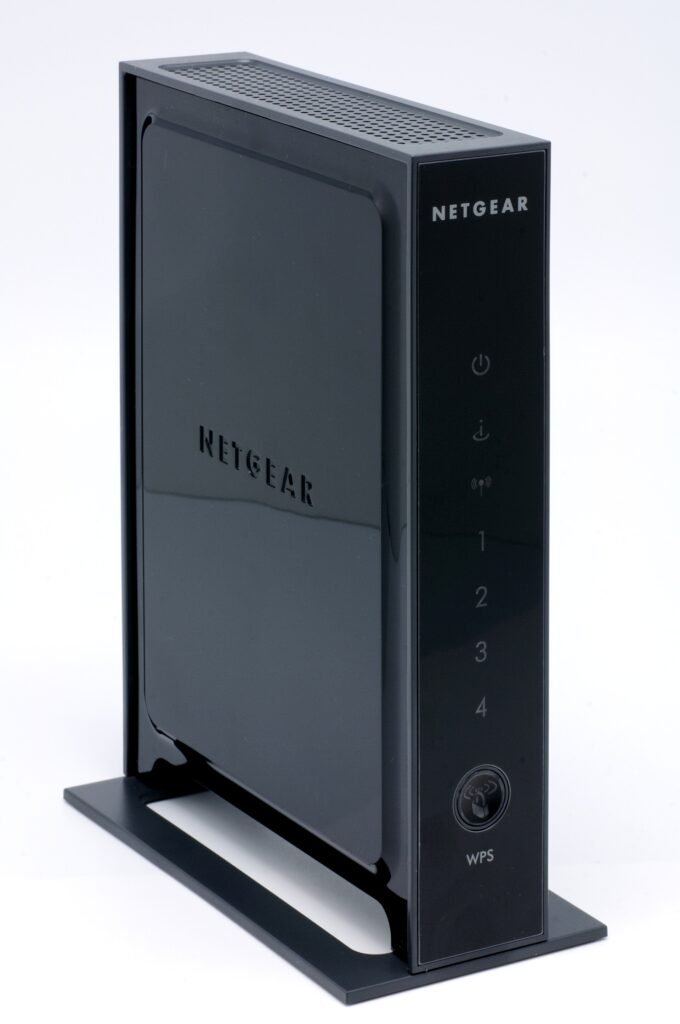
The router is the most common cause of a home internet outage, and the fix takes two minutes. The modem connects your home to the provider, and the router shares that connection with your devices. If you have a single box that does both, restart it the same way.
- Look at the lights. A modem and a router have status lights for power, internet, and Wi-Fi. A red internet light, a blinking internet light, or no internet light at all means the modem has no connection to your provider. Note which lights are on before you touch anything.
- Restart the modem and the router. Unplug the power from both. Wait 30 seconds. Plug the modem back in first and wait until its lights settle. Then plug the router back in and wait until its lights settle. Do not press the reset button, which wipes the settings; unplugging is a restart, not a reset.
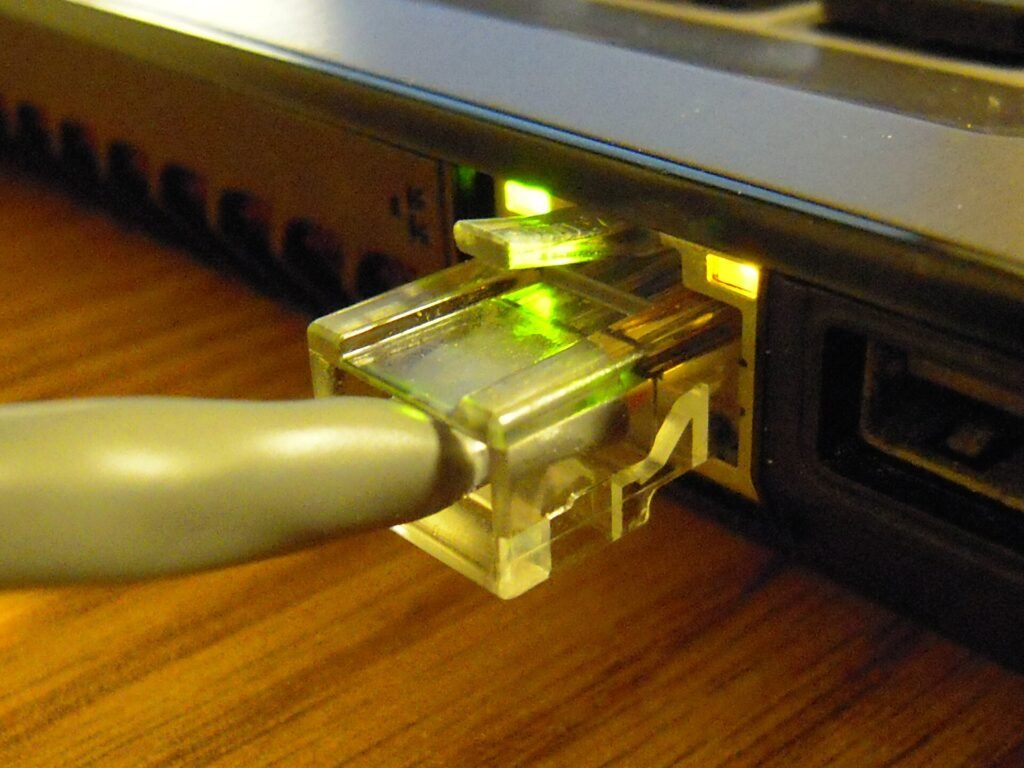
- Check the cables. Make sure the cable from the wall to the modem is firmly seated, and the Ethernet cable from the modem to the router is firmly seated. A loose cable looks like an outage.
- Try a wired connection. Plug a laptop directly into the router with an Ethernet cable. If the wired connection works and Wi-Fi does not, the problem is the Wi-Fi, not the internet. Restart the router again, and check that Wi-Fi is turned on in its settings.
- Try another device. If one laptop works on Wi-Fi and another does not, the problem is the second laptop, not the network.
If the internet light stays red after a restart and a cable check, the problem is outside your home. Move on to the provider check.
Check the Official Status Page
Every major service publishes a status page that says whether its systems are working. The official page is the most reliable source, because it comes from the service itself.
- Google services. The Google Workspace Status Dashboard covers Gmail, Google Drive, YouTube and the other Google services.
- Apple services. The Apple System Status page covers iCloud, the App Store, Apple Music and the other Apple services.
- Cloud providers. Cloudflare publishes the Cloudflare Status page, and Amazon publishes the AWS Health Dashboard. These matter because many apps and websites run on them: when a cloud provider has a problem, many unrelated services fail at the same time.
- Any other service. Search for the service name plus “status page” and use the official page. A real status page lists each system separately, with its current state and a history of past incidents.
Read the page carefully. A green light for the main service with a warning on one part of it means only that part is affected. A status page that says everything is fine while your app still fails means the problem is on your side, or between you and the service.


Use an Outage Map
An outage map collects reports from users and shows where reports are coming from. Downdetector is the best-known one. It shows a graph of user reports over the last 24 hours, and a map of where the reports are.
Read it this way:
- A sharp spike in reports means an outage. If reports jumped from a handful to thousands in a short time, the service has a problem.
- A flat line means the service is probably fine. If reports are at their normal low level and you are the only one reporting, the problem is likely on your side.
- A cluster on the map means a local problem. If reports cluster in one city or region, the outage may be local to that area, often a provider issue rather than the service itself.
- The comments are the least reliable part. One angry comment does not prove an outage, and a flood of comments after a spike is normal.
Do not use an outage map as the only check. It is user reports, not the service’s own data, so pair it with the official status page. And do not trust a screenshot of an outage map, since the numbers change every few minutes.

Run a Speed Test
A speed test tells you whether your connection is slow, unstable, or dead. Fast.com is a simple one: open the page and it starts the test on its own.
Compare the result with the speed in your internet plan and with a test on another device. If the test will not start at all, the connection is down, not slow. If the test runs but the speed is far below your plan on every device, the connection is degraded, and the router restart and the provider check are the next steps. If the test is normal on a wired connection but slow on Wi-Fi, the Wi-Fi signal is the problem: move closer to the router, or check for interference from other networks.
Run the test twice, a few minutes apart. A single slow result can be a brief dip, while two slow results in a row point at a real problem. A speed test also helps after an outage ends: run it again to confirm the connection is back to normal before you call the problem fixed.
Check Your ISP Outage Page and What to Tell Them
If the router restart did not help and the service’s own status page says it is fine, the problem may be your internet provider. Most providers publish an outage page or an outage map for their own network. Search for your provider’s name plus “outage” and use the official page.
Before you call your provider, have this information ready:
- Your account number and service address.
- Which router lights are on, and which are red or off.
- Whether the problem affects every device or only some.
- What you already tried: the router restart, the cable check, and the wired connection test.
- When the problem started.
That list saves time, because it is what the support agent will ask first. If the provider confirms an outage in your area, ask for an estimated repair time, and write it down. Do not keep restarting the router while an area outage is in progress, since it changes nothing and can hide the repair. Some providers also send outage alerts by text or email, so check your messages before calling, since the alert may already tell you what is happening.
What to Do While the Internet Is Down
An outage is a good time to do the things that do not need the internet.
- Use mobile data for the essentials. Turn on the mobile hotspot on your phone for a laptop, but keep it to the work that matters, since hotspot data is usually limited.
- Switch to offline work. Documents, spreadsheets and notes that are saved on the device still open and edit without a connection.
- Download what you need later. If the outage is short, wait it out rather than fighting it.
- Do not keep refreshing. Repeatedly reloading a down site or retrying a login can lock your account, and it does not bring the service back sooner.
- Do not change settings. Reinstalling apps, resetting passwords, and changing network settings during an outage can create new problems that remain after the outage ends.
If you work from home, tell your team early, and say when you expect to be back. A short message beats silence.
Is It an Outage or Your Account?
Not every “cannot sign in” is an outage. Check these before assuming the service is down.
- Wrong password or locked account. Too many failed logins can lock an account, which looks like an outage from your side. Use the password reset on the service’s own site.
- Unpaid bill or suspended service. An unpaid bill can suspend an internet or mobile service. Check your email for a notice from the provider.
- Expired payment method. A failed renewal can stop a subscription service. Check the payment method in the account settings.
- Two-factor authentication. If the code is not arriving, the problem may be the phone or the authenticator app, not the service.
If the official status page says the service is fine and other people can sign in, the problem is your account, not an outage.
Outages by Service
Each service family has its own detailed guide. These are short summaries, and the full steps live in the dedicated article for each service.
- Internet providers. Verizon, Spectrum, Xfinity, AT&T, T-Mobile, Cox, Frontier and the other providers each have their own outage page. The checks are the same: router restart, cable check, provider outage page, then a call with the information listed above.
- Cloud services. AWS, Microsoft 365, Azure, Cloudflare, Google and GitHub outages often affect many apps at once. Check the provider’s own status page first, since it explains the wider failure.
- Social and messaging. Facebook, X, Instagram, Discord, TikTok, WhatsApp and YouTube outages are best checked on the official status page and an outage map together, since a spike in user reports is the first sign.
- Gaming. Xbox, PlayStation Network, Steam, Fortnite, Call of Duty, EA, Epic Games and Arc Raiders outages follow the same pattern: check the platform status page, restart the console or PC, and check the game servers.
- AI tools. ChatGPT, Claude, Janitor AI and Character.AI outages are checked the same way: the official status page, then an outage map, then a wait.
- Shopping. Amazon and eBay outages are rare, but when they happen, the status page and the outage map show it fast. Do not retry a payment repeatedly during an outage, since it can create a duplicate order.
Frequently Asked Questions
How do I know if the internet is down or if it is just my Wi-Fi?
Plug a laptop into the router with an Ethernet cable. If the wired connection works and Wi-Fi does not, the problem is Wi-Fi. If the wired connection fails too, restart the modem and the router, then check your provider’s outage page.
Is there a mobile outage in my area?
Check your provider’s official outage page or outage map, and check an outage map for a cluster of reports in your area. If other people nearby report the same problem at the same time, it is likely a local outage. Restart the phone first, since a single phone losing signal is more common than an area outage.
Why is one website down but everything else works?
The problem is that website, not your internet. Check the site’s official status page and an outage map. If the status page says the site is fine, clear the browser cache, try another browser, and turn off the VPN.
How long do internet outages usually last?
It depends on the cause. A router problem ends with a restart. A provider problem can last from minutes to hours, and the provider’s outage page is the only reliable source for an estimated repair time. Do not trust a number from a random comment or a screenshot.
What should I do first when the internet stops working?
Restart the modem and the router, then check whether other devices are affected. If every device is affected, check the provider’s outage page. If one device is affected, restart that device. If one site is affected, check that site’s status page.
Related Fixes
For the general method behind these steps, see our complete troubleshooting guide, our list of error codes, our guide to what an error code means, and our list of HTTP status codes.
Sources
6
- Downdetector: https://downdetector.com/
- Google Workspace Status Dashboard: https://www.google.com/appsstatus/
- Apple System Status: https://www.apple.com/support/systemstatus/
- Cloudflare Status: https://www.cloudflarestatus.com/
- AWS Health Dashboard: https://health.aws.amazon.com/health/status
- Fast.com: https://fast.com/
Every factual claim on this page was verified against a named source above, or is presented as a general troubleshooting step.