Vanguard error 57 means Riot Vanguard is not running or could not start correctly, and the fix is to set the Vanguard service (vgc) to Automatic, restart your PC, and reinstall Vanguard if the error returns. This guide covers the Vanguard error codes players see most in Valorant and League of Legends, VAN 57, VAN 59, VAN 68, VAN 84, VAN 1067, VAN 135, VAN -79, VAN -81, and the VAN 9000 security codes, using Riot’s own support steps first. For the wider map of game errors, see our guide to game error codes.
What Riot Vanguard Is, and Why It Blocks Your Game
Riot Vanguard is the anti-cheat that protects Valorant and League of Legends. It starts before the game opens and runs at a low level on your PC: the vgc service coordinates it, and the vgk.sys driver loads when Windows starts. If Vanguard cannot start, stay connected, or confirm your PC meets its security requirements, the game closes and shows a VAN code. That design explains the fix order: restart first, then check the vgc service, then reinstall. Work through the steps in the order Riot lists them, and launch the game after each step.
One warning before you start: do not apply these steps to ban or restriction codes such as VAN:RESTRICTION or VAN:INCOMPATIBLE SOFTWARE. Those messages identify different problems, and the steps below will not clear them. Also, if you turned on Vanguard Pre-Check, Vanguard is meant to start on demand when you launch a game, not at Windows startup, so forcing the vgc service to Automatic is the wrong first move. Pre-Check needs a compatible Windows 11 system with Secure Boot, TPM 2.0, virtualization-based security, and HVCI. If you enabled it, restart the Riot Client or the PC first.
Vanguard Error 57: Vanguard Is Not Running
VAN 57 is the most common Vanguard error. Riot’s support page states it plainly: VAN 57 usually means Vanguard is not running or could not start correctly. The full message reads “Vanguard Error: VAN 57. An unexpected error with Vanguard has occurred and the client will now close.”
Follow Riot’s steps in order:
- Set the Vanguard service to start automatically. Press Win + R, type
services.msc, and press Enter. Find vgc, open its properties, set the startup type to Automatic, and select Start if the service is stopped. Choose Apply and OK, then restart your PC. Skip this step if you use Vanguard Pre-Check. - Restart your PC if vgc was already set to Automatic. A restart gives Vanguard a fresh startup.
- Remove and reinstall Vanguard. Uninstall Riot Vanguard from Settings, then Apps, then Installed apps. Restart your PC and launch the game again, which reinstalls Vanguard.
- Perform a clean boot. Background apps or services may interfere with Vanguard, and a clean boot helps you find which one. Keep the vgc service enabled, and launch the game to test.
- Reinstall your game. This replaces corrupted or missing game files that may be stopping Vanguard from launching.
If the error remains, submit a ticket to Riot Player Support with your logs.
VAN 59: Vanguard Hit a Problem Starting or Talking to the Client
VAN 59 means Vanguard ran into an unexpected issue while starting or communicating with the Riot Client, according to Riot’s support page for the code.
Riot’s fix order for VAN 59 is shorter:
- Restart the Riot Client. Close it fully, then open it again and try launching the game.
- Remove and reinstall Vanguard. Uninstall it, restart the PC, and launch the game so Vanguard installs again.
- Reinstall your game. If the code survives a Vanguard reinstall, the game files themselves may be damaged.
Test in the Practice Tool or a custom game after each step, as Riot suggests.
VAN 68 and VAN 135: Connection Lost, or PC Not Verified
VAN 68 means Vanguard lost a connection or session it needed while the game was starting or in progress. VAN 135 means Vanguard could not verify that your PC is ready to play, or hit a problem while starting. Each has one extra step.
For both codes, start with a PC restart and the vgc Automatic check from the VAN 57 section, then reinstall Vanguard if the code returns. Then add the step for your code:
- For VAN 68, fix your clock. Open Settings, then Time and language, then Date and time, and switch on “Set time automatically” and “Set time zone automatically”. Wrong date, time, or time zone settings break the secure connections Vanguard needs. Riot also suggests turning off Killer Network Service if your PC has it.
- For VAN 135, update Windows. Open Settings, then Windows Update, select “Check for Windows updates”, and install anything pending. VAN 135 is often tied to a Windows version that is behind what Vanguard expects.
VAN -79, VAN -81, and VAN -83: Startup and Connection Trouble
VAN -79, VAN -81, and VAN -83 are the negative codes for the same family of problems: Vanguard is having trouble starting, staying connected, or confirming everything is ready while the game launches or runs. The VAN -79 message reads “Connection Error: VALORANT has encountered a connection error. Please relaunch the client to reconnect.” Riot’s fix order is:
- Restart your PC.
- Check your Windows time settings, as described for VAN 68 above.
- Set the vgc service to Automatic, unless you use Vanguard Pre-Check.
- Remove and reinstall Vanguard.
- Perform a clean boot.
- Reinstall your game.
- Check your connection: restart the router, try a wired connection, and turn off any VPN or proxy.
If you see VAN -1 or VAN Missing -117, the meaning is simpler: Vanguard is not running at all, and the client closes because the anti-cheat is required. Use the VAN 57 steps above, starting with a real restart. Use Start, then Power, then Restart, not Shut down: with Fast Startup on, Shut down keeps parts of Windows loaded.
VAN 84 and VAN 1067: Verification and Check-In Failures
VAN 84 means Vanguard could not verify your PC is ready, or failed while initializing. Riot’s fix order is to update Windows first, then check the vgc service, then reinstall Vanguard, then try a clean boot.
VAN 1067 is listed in Riot’s Vanguard error index among the numbered codes. Player guides describe it as an unexpected Vanguard startup issue, and the fix follows the same sequence: update Windows, disconnect extra USB devices, run the Riot Client as administrator, check the vgc service, and try a clean boot if the code persists. Riot does not publish a separate plain-language page for VAN 1067.
VAN 216 in League of Legends
VAN 216 is a code League of Legends and Valorant players report. Riot’s support page for the code says it appears when too many launch attempts are made within a short period. The fix is to wait: leave the game closed for at least 30 minutes without pressing Play, then launch again. Pressing Play before the 30 minutes are up restarts the timer, so make sure you wait the full 30 minutes before trying again. Reinstalling Vanguard or the game does not shorten the wait.
VAN 9001, VAN 9003, and VAN 9005: TPM, Secure Boot, and VBS
The VAN 9000 codes are security-requirement errors, not startup failures. Vanguard checks that your PC meets its security list, and each code names the check that failed:
- VAN 9001 means TPM 2.0 is off. Enable TPM in your BIOS settings. On Intel boards this is often called Intel PTT, and on AMD boards AMD fTPM.
- VAN 9003 means Secure Boot is off. Check your BIOS mode and Secure Boot state first: press Win + R, type
msinfo32, and press Enter. If BIOS Mode says Legacy, your disk must be converted from MBR to GPT with Microsoft’s MBR2GPT tool before you change anything in the BIOS, or Windows will not boot. Then set the boot mode to UEFI, turn off CSM, and enable Secure Boot. Back up your files and save your BitLocker recovery key before converting a disk, since a wrong step can lock you out of Windows. - VAN 9005 means the VBS setup is incomplete. Virtualization-based security must be set up correctly in Windows and in the BIOS. Check that virtualization is enabled in the BIOS first.
These BIOS changes can stop Windows from starting if done wrong. If you are not sure what your BIOS menus mean, check your motherboard manual first.
Memory Integrity, HVCI, and VAN:RESTRICTION
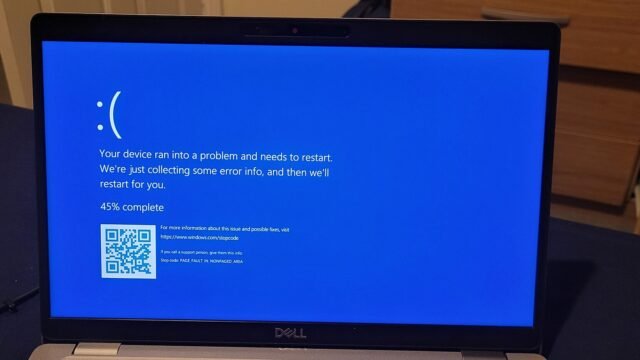
Vanguard also checks Memory Integrity, the Windows feature also known as HVCI. If Memory Integrity is off and Vanguard requires it, you will see a VAN:RESTRICTION message rather than a numbered VAN code. Turn Memory Integrity on in Windows Security, under Device security, then Core isolation, and restart the PC. If Windows refuses because of an incompatible driver, the driver name shown is the problem to fix or remove. A blue screen during this work, such as a WHEA uncorrectable error, points at the hardware or driver side instead, and our guide to blue screen errors covers those codes.
VAN or VAL: Do Not Mix the Two Up
Riot’s own Vanguard error index warns about an easy mix-up: VAN errors come from Riot Vanguard, while VAL errors come from Valorant itself. If your error starts with VAL, like VAL 59 instead of VAN 59, it belongs to Valorant’s own error list, not to this guide.
League of Legends Notes
League of Legends uses the same Vanguard install as Valorant, so the codes and fixes in this guide apply to both games. Two League details are worth knowing. First, League’s client shows “Riot Vanguard session is initializing” while it waits for Vanguard to load: close the Riot Client, restart the whole PC, and only then check the vgc service. Second, test fixes in the Practice Tool or a custom game.

Quick Reference
| Code | Meaning | First fix |
|---|---|---|
| VAN 57 | Vanguard is not running or could not start | Set vgc to Automatic, restart PC |
| VAN 59 | Unexpected issue starting or talking to the client | Restart Riot Client, reinstall Vanguard |
| VAN 68 | Vanguard lost a required connection | Fix clock, restart PC, check vgc |
| VAN 84 | Vanguard could not verify the PC or initialize | Update Windows, check vgc |
| VAN 1067 | Startup or system check-in issue | Update Windows, check vgc, clean boot |
| VAN 135 | Vanguard could not verify the PC is ready | Update Windows, restart PC |
| VAN -79 / -81 / -83 | Trouble starting or staying connected | Restart PC, fix clock, check vgc |
| VAN -1 / -117 | Vanguard not initialized or missing | Restart PC, set vgc to Automatic |
| VAN 9001 | TPM 2.0 is off | Enable TPM 2.0 |
| VAN 9003 | Secure Boot is off | Enable Secure Boot |
| VAN 9005 | VBS setup is incomplete | Complete the VBS setup |
| VAN 216 | Too many launch attempts in a short period | Wait at least 30 minutes without pressing Play |

Frequently Asked Questions
What is Vanguard error 57?
VAN 57 means Riot Vanguard is not running or could not start correctly. Set vgc to Automatic in services.msc, restart your PC, and reinstall Vanguard if it returns.
Why does VAN 57 keep coming back after a restart?
The most common cause is a program that sets the vgc service to Disabled, such as a debloat or optimizer tool. Check the service after each restart.
What is the difference between VAN 57 and VAL 59?
VAN 57 comes from Riot Vanguard, the anti-cheat. VAL 59 comes from Valorant itself. They are different error lists with different fixes.
Do I need TPM 2.0 and Secure Boot to play Valorant?
On Windows 11, Vanguard requires TPM 2.0 and Secure Boot, and can require virtualization-based security and Memory Integrity. VAN 9001, VAN 9003, and VAN 9005 appear when a check fails.
Should I force vgc to Automatic if I use Vanguard Pre-Check?
No. With Pre-Check enabled, Vanguard is meant to start on demand when you launch a game, not at Windows startup. Restart the Riot Client or the PC first.
What is a clean boot, and why does Riot suggest it?
A clean boot starts Windows with Microsoft services and a reduced set of startup programs. It helps you find whether a background program or driver is interfering with Vanguard.
Related Fixes
If the error is in another game, our guides cover Roblox error codes, starting with error code 279, Steam error codes, starting with the disk write error, and Minecraft error codes, starting with exit code 1.
Sources
10
- Riot Games Support, Error VAN 57: https://support.riotgames.com/en-us/riot/performance/error-van-57
- Riot Games Support, Error VAN 59: https://support.riotgames.com/en-us/riot/performance/error-van-59
- Riot Games Support, Error VAN -79: https://support.riotgames.com/en-us/riot/performance/error-van–79
- Riot Games Support, Vanguard Error Codes index: https://support.riotgames.com/en-us/riot/performance/vanguard-error-codes
- Riot Games Support, VAN: Incompatible Software: https://support.riotgames.com/en-us/riot/performance/error-van-incompatible-software
- Riot Games Support, Error VAN 216: https://support.riotgames.com/en-us/riot/performance/error-van-216
- Riot Games service status: https://status.riotgames.com
- FileFix, Vanguard error VAN 57, VAN 68 and VAN 135 fix: https://www.filefix.org/vanguard-error-van-57.html
- Tier1Settings, Riot Vanguard session is initializing: League VAN fixes: https://tier1settings.com/league-of-legends-vanguard-error-fix/
- UpdateStar News, VAN error in Valorant or League? Fix Riot Vanguard: https://news.updatestar.com/amp/post/van-error-in-valorant-or-league-fix-riot-vanguard
Every factual claim on this page was verified against a named source above, or is presented as a general troubleshooting step from the game’s own support guidance.